Choose the screen that shows the QR
For phone to computer, open IcyZip on the computer first. For computer to phone, either device can start; the direction is decided later by which side chooses the file.
One file, paired browsers
Move one selected file from Android or iPhone to a Windows, macOS, or Linux computer—and back again—without creating an account, installing a transfer app, or uploading a public download link.
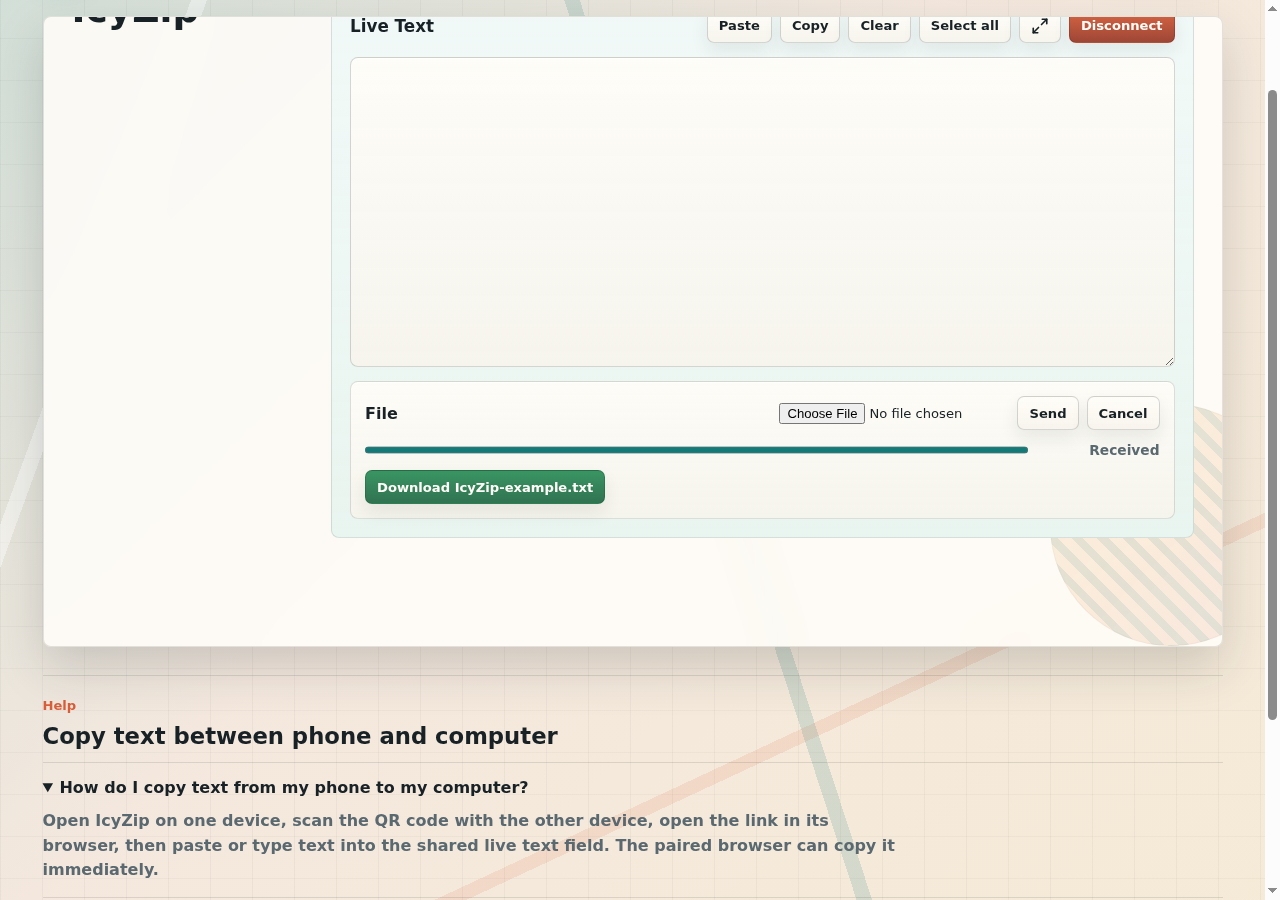
Connect an Android smartphone or iPhone to a PC, Mac or Linux laptop to copy text or transfer a selected file. Open IcyZip on the computer and scan its QR code with the phone. The two browsers then share a live text field, and either device can send one file at a time.
You do not need a USB cable, Bluetooth or the same Wi-Fi network. Both devices need Internet access and an open browser tab. This connection is for text and file sharing; it does not mirror the phone screen or give access to the rest of the device.
Exact workflow
The two browser tabs create a direct, active handoff with no inbox or recipient account to configure.
For phone to computer, open IcyZip on the computer first. For computer to phone, either device can start; the direction is decided later by which side chooses the file.
Scan the QR code, use the built-in IcyZip scanner, or open the pairing link. Wait until both sides say Connected before choosing a file.
Open the File action on the sending side, use the browser file picker, select one item, and press Send. The current limit is 25 MB per selected file.
Keep both browsers open while progress moves. When the receiver shows Received, use its download action to save the file locally.
Direction
Pairing is not tied to a sender role. Once connected, either browser can send the selected file, and the other browser becomes the receiver for that transfer.
Start on a Windows, macOS, or Linux computer, scan from the phone, choose a photo, document, export, or other file in the mobile browser, then download it on the computer.
Use the same pair, choose a file in the desktop browser, and keep the phone tab awake until the download action appears. The phone browser and operating system decide where the downloaded file is stored.
The QR link can also connect two desktop or laptop browsers. This can be useful when the machines do not share a clipboard, account, cable, or cloud-drive folder.
Browser and device notes
IcyZip uses browser QR/link navigation, WebCrypto, WebSocket with a text-only HTTP fallback, a browser file picker, and browser downloads. Exact picker and download locations remain operating-system behavior.
| Device/browser | Practical path | Helpful note |
|---|---|---|
| Android with Chrome or another Chromium browser | Scan the computer QR with the camera app or the built-in scanner, choose a file from the Android picker, and keep the tab visible during transfer. | After the phone wakes, IcyZip restores the connection or presents a fresh QR code for quick re-pairing. |
| iPhone or iPad with Safari | Open the pairing link in Safari and choose a file through the iOS picker. Use Safari's download UI on receipt. | The native camera app and direct pairing link work alongside the optional built-in scanner. |
| Windows with Chrome, Edge, or Firefox | Use the desktop as the QR screen or sender. The browser download normally goes to its configured Downloads location. | File transfer uses the live WebSocket connection; live text also has an HTTP fallback. |
| macOS with Safari, Chrome, or Firefox | Pair through QR/link and use the standard file picker and download controls. | Camera and download permissions stay under the browser and operating-system controls. |
| Linux desktop with Chromium or Firefox | The automated browser gates exercise pairing, reconnect, encrypted transfer frames, received bytes, and post-transfer text progress. | The browser's configured Downloads location determines where the received file is saved. |
Recovery
IcyZip restores an available pairing or presents a fresh QR code for a quick new connection.
Return to the IcyZip tab and bring it online. Visibility and network recovery replace a stale connecting transport. If the stored pair is still available, the two browsers reconnect and keep the tab's current draft text.
The page removes the stale pairing identity, creates a new primary pair, and shows a fresh QR code with an explicit rescan instruction.
Allow camera access and retry, use the phone's camera application, copy/open the pairing link, or use another IcyZip browser's built-in scanner. The scanner accepts controlled HTTPS IcyZip pairing origins and rejects foreign or insecure lookalikes.
Keep both tabs open and connected until the receiver finishes. After reconnecting, choose and send the file again for a complete handoff.
Security and privacy
Current product browsers derive a file-specific key from the browser pairing material and encrypt each file chunk before its WebSocket binary frame leaves the sender. The paired browser decrypts the bytes and creates the local download.
File bytes use browser-side AES-GCM encryption with a separate derivation context from live text. The service forwards encrypted binary data; it is not the endpoint that opens the received file.
The service processes the filename, MIME/type hint, file and wire sizes, chunk sizing, timing, pairing activity, IP-derived country where configured, and browser class to coordinate the transfer. The privacy policy provides the full details.
The focused workflow sends one selected file per active transfer.
The server does not persist received file bytes as a download object. The receiving browser holds the result as a local browser Blob for its download action. Browser download history and the saved file remain on that device.
Explore the design: How IcyZip Works explains pairing, browser encryption, storage, and recovery; the privacy policy documents operating data.
FAQ
Quick answers about pairing, transfer direction, file size, QR options, and browser encryption.
Open IcyZip on the computer, scan its QR code with the phone, wait until both browsers show Connected, choose one file on the phone, and press Send. Keep both tabs open until the computer shows the download action.
Yes. Pairing is bidirectional. Choose the file on the computer side and send it while the phone browser remains connected, then use the download action on the phone.
Choose and send one file up to 25 MB per transfer.
Use the phone camera app or open the pairing link directly. The built-in scanner is an additional option in browsers that support it.
Current IcyZip product clients encrypt file chunks in the sending browser and decrypt them in the paired receiving browser. The privacy policy explains the operating data used to coordinate the transfer.